Compliance
DOT and DVIR compliance, built in.
Inspections, defects, reminders and documents sit on one record. Automation, voice agents and AI run on top of it.
What the base covers
A clean, timestamped record for each inspection
A roadside stop or a DOT audit starts from the record, not from a search.
Guided pre-trip and DVIR checks
Drivers complete guided inspections on an iOS or Android phone, with photo evidence.
Defects on the record
A failed item carries photos and a note, and the manager sends the repair forward.
Renewals you see coming
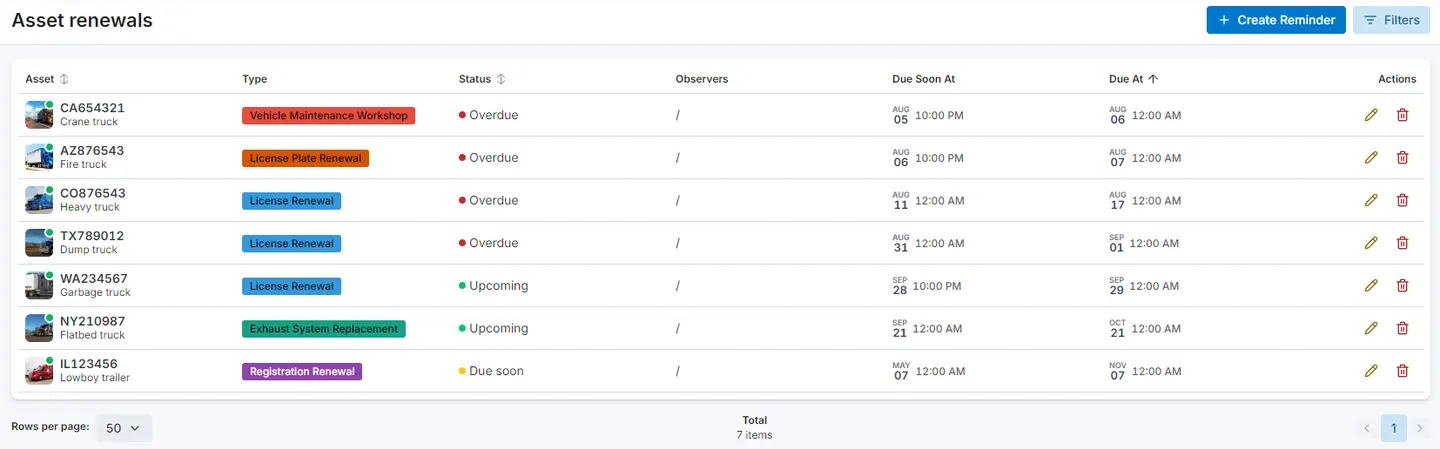
Registration, inspection and maintenance due dates move from Upcoming to Due Soon to Overdue, and the people you choose are notified.
Documents and scorecards
Drivers scan waybills, licenses and receipts and file each under a document type you define. Each driver sees a safety score, and managers see every score.
How it works
One inspection, from pre-trip to proof
Follow one inspection from the driver’s pre-trip check through a defect, repair follow-up and the status history kept on its record.
01
The driver starts the pre-trip check
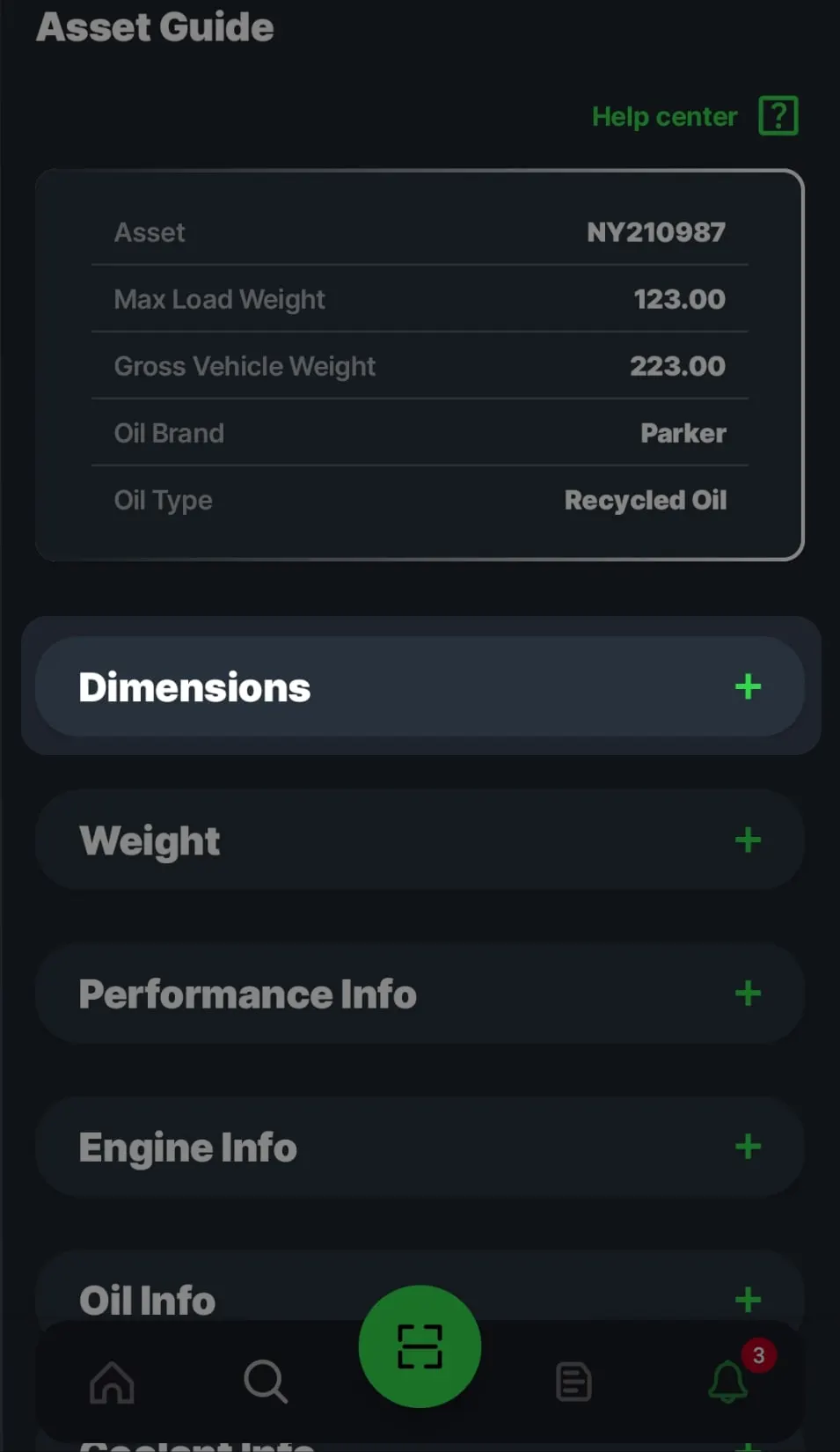
The driver opens assigned forms from the To-Do list. The asset guide keeps the truck’s specs, from load weight to oil type, close at hand.
02
A defect goes on the inspection
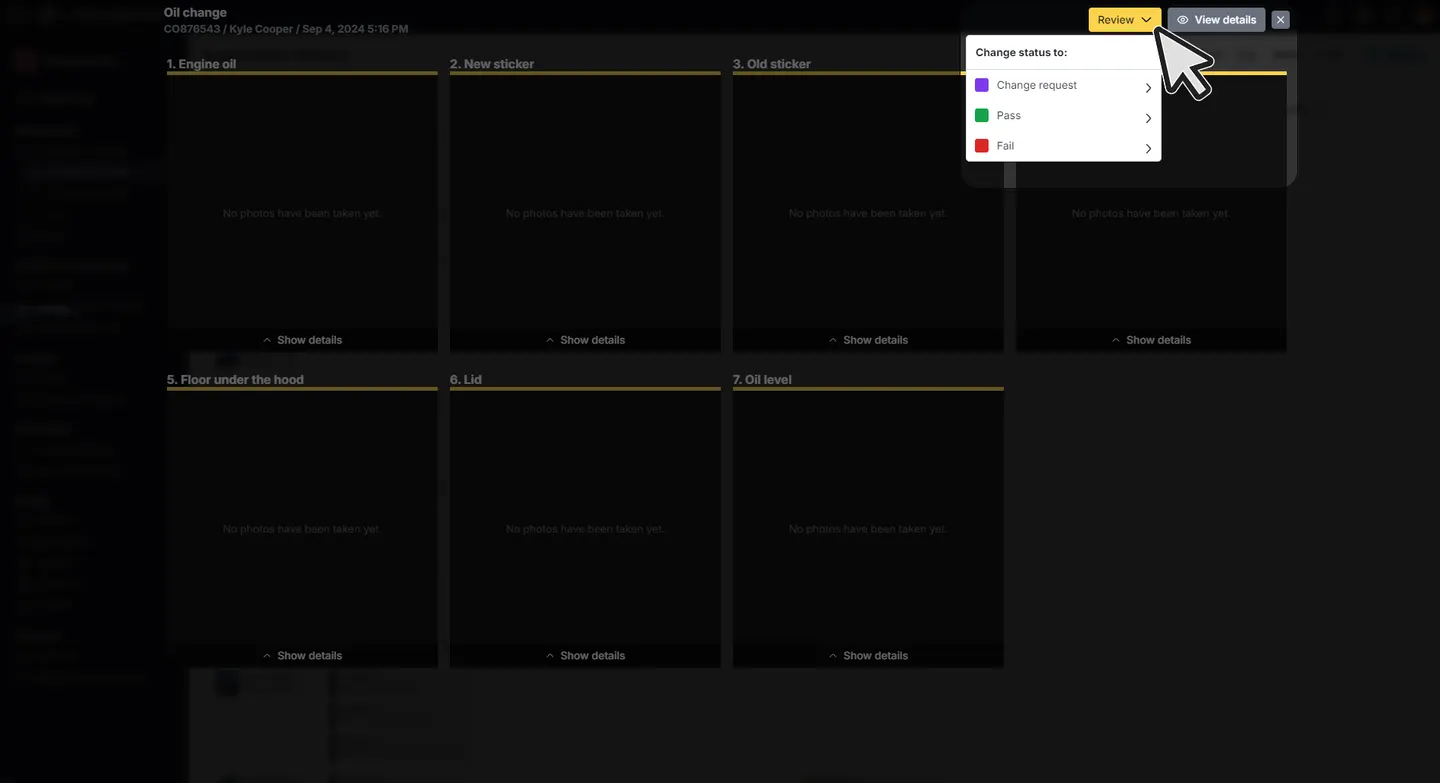
The driver marks the failed item, adds photos and a note, then submits the inspection for manager review.
- Review
- Fail
03
The manager sends the repair forward
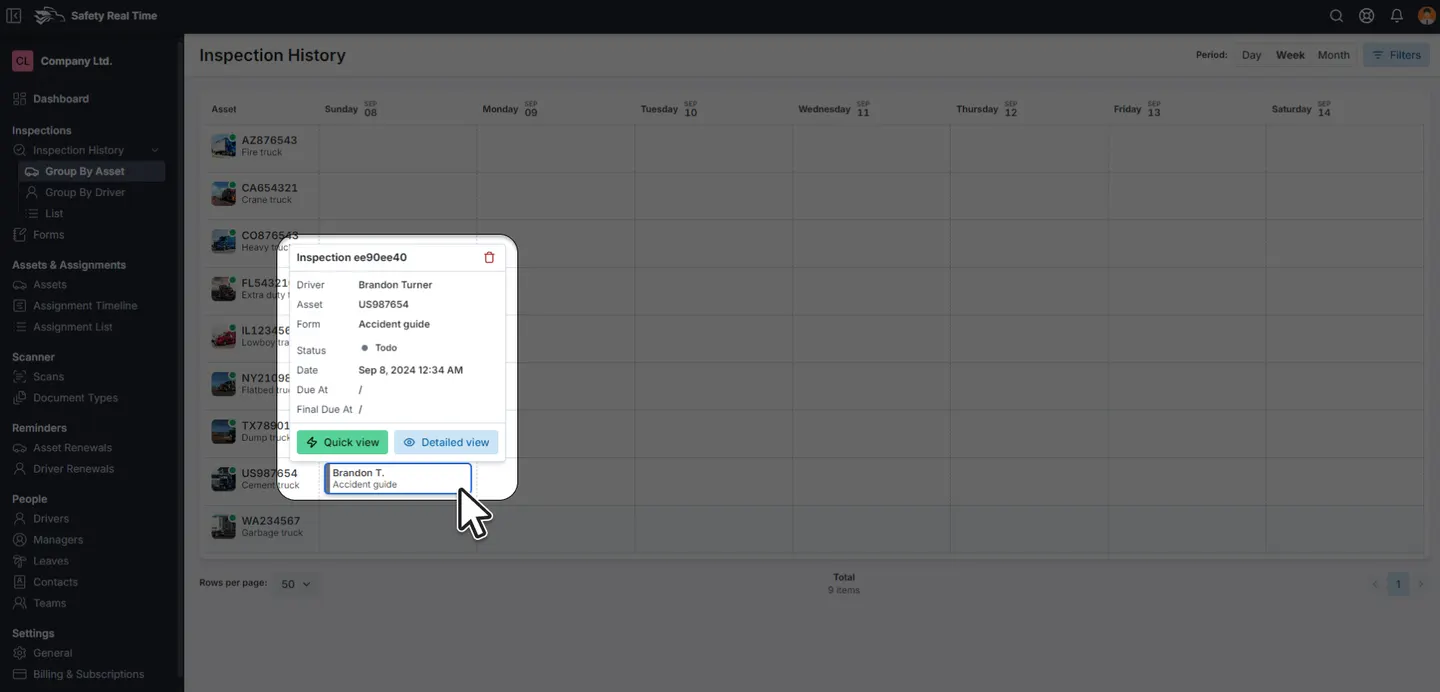
The manager reviews the inspection, comments, changes its status, and can request repairs or a re-inspection.
- Review
- Change request
- Fail
04
The status history holds the follow-up
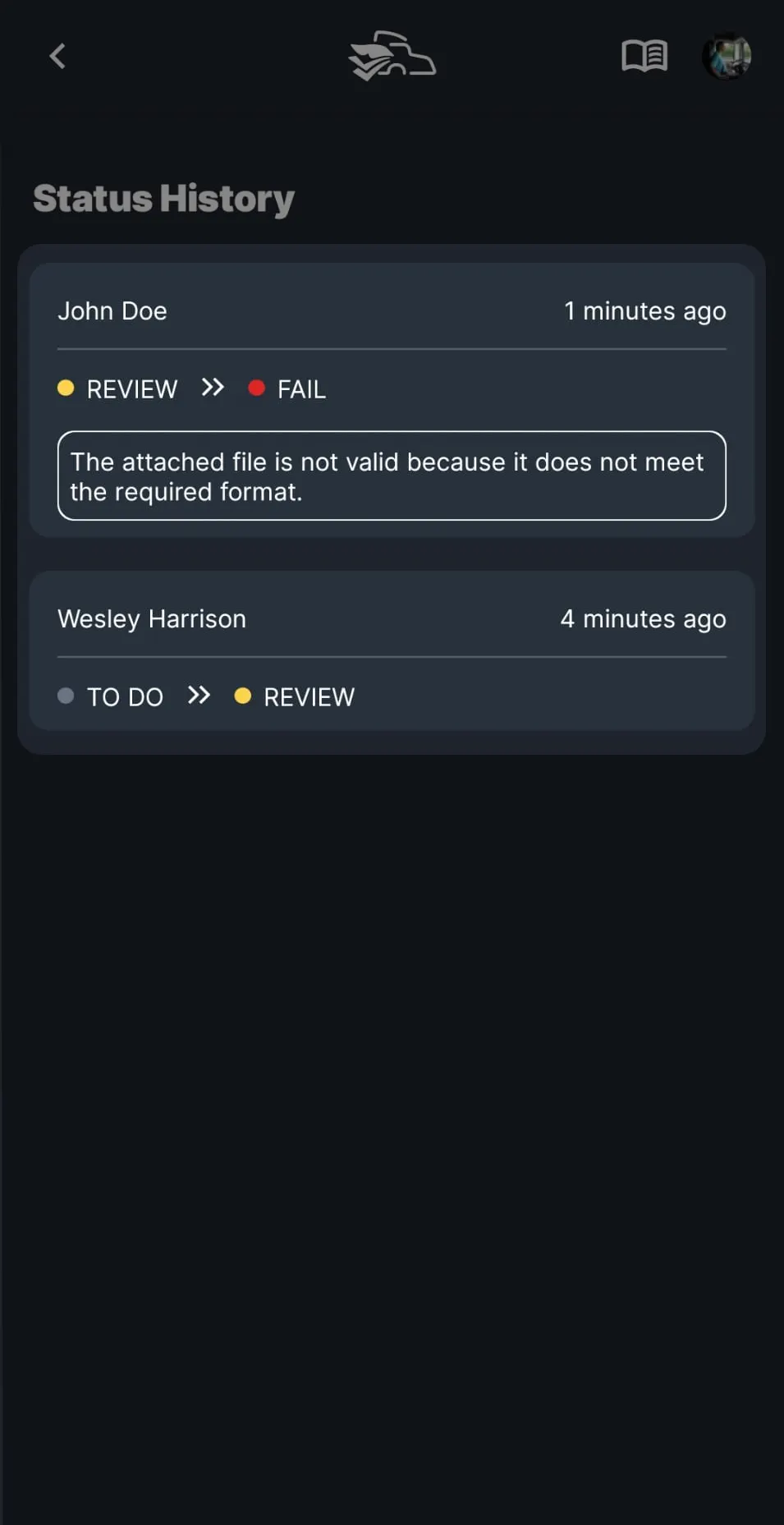
When the inspection status changes, its history records who changed it, when, and any note. The repair and re-inspection follow-up stay tied to that inspection.


The handoff
Three people on the same record
- 01
Driver
Does the checks on the phone, at the truck.
- DVIR checklists and damage photos
- Document scans
- Leave requests and notifications
- 02
Manager
Reviews the results and keeps the fleet compliant from the web dashboard.
- Inspection review and status changes
- Asset and driver renewals
- Assignments, teams and leaves
- 03
Mechanic
Fixes what drivers flag, without needing an account.
- A public link to the inspection, with photos and notes
- Repair requests logged on the inspection
- A re-inspection to confirm the fix
Manager workspace
The tools around the inspection
Everything a manager needs around the inspection.
01
Dashboard
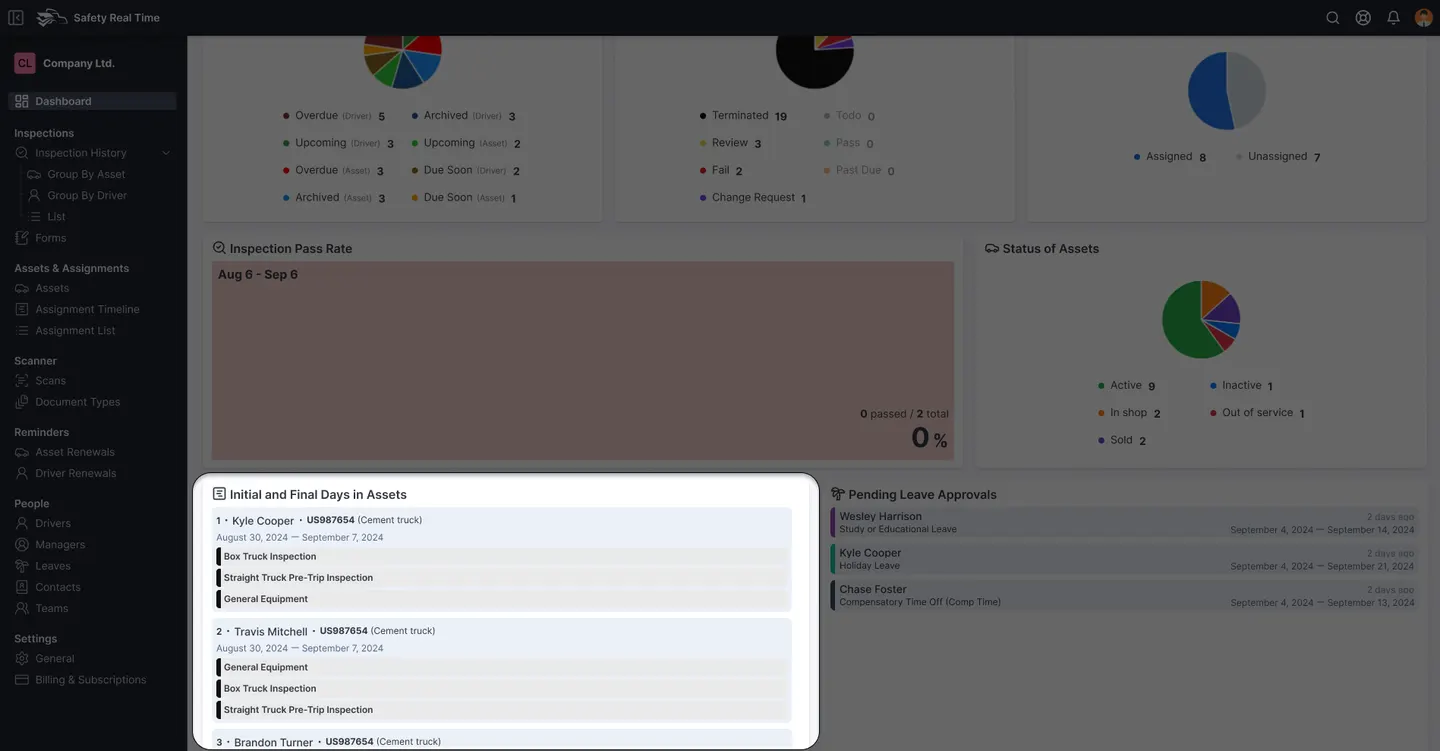
Widgets for inspections and reminders by status, pass rate, asset status and pending leave approvals.
02
Inspections
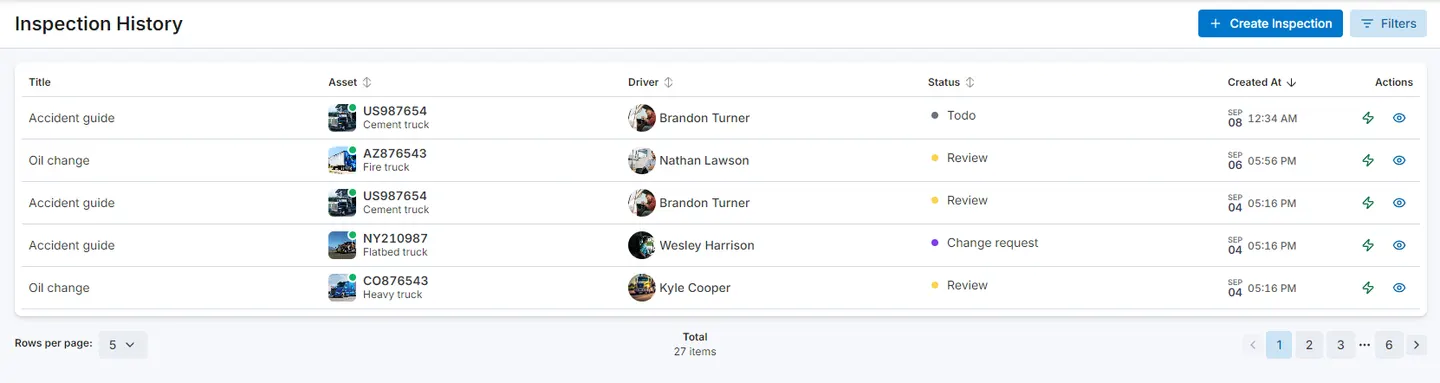
Forms from a template library, schedules, and every result by asset, by driver or as a list.
03
Assets & Assignments
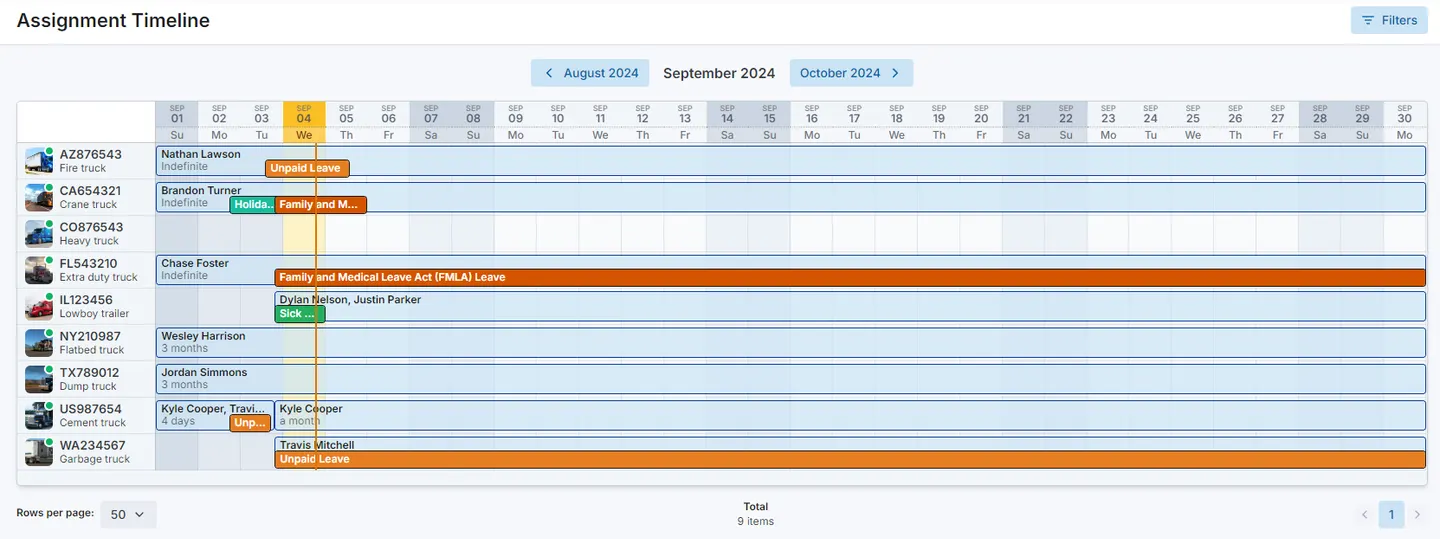
Every truck and trailer in one table, and a monthly timeline of who drives what.
04
Scanner
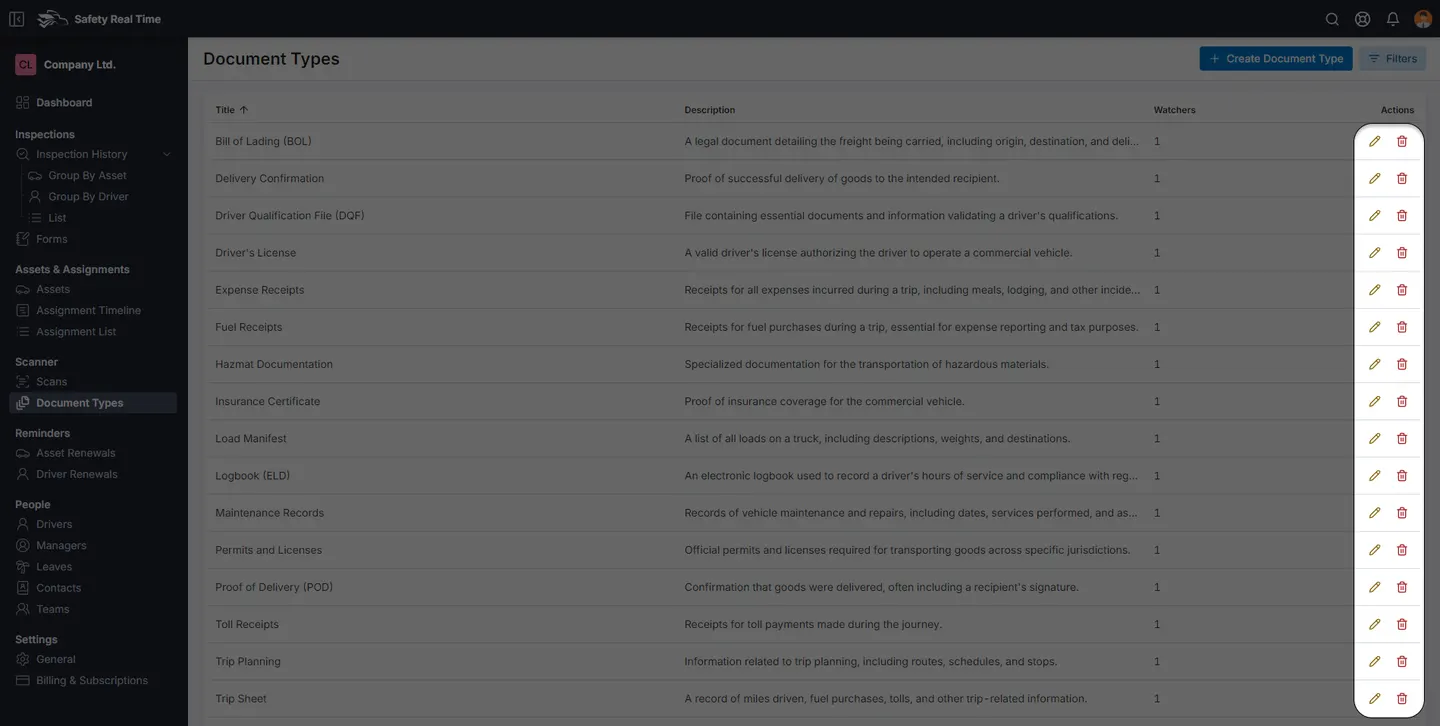
Document types you define, and every scan filed by driver and type.
05
Reminders
Asset and driver renewals with due dates, due-soon thresholds and observers who get notified.
06
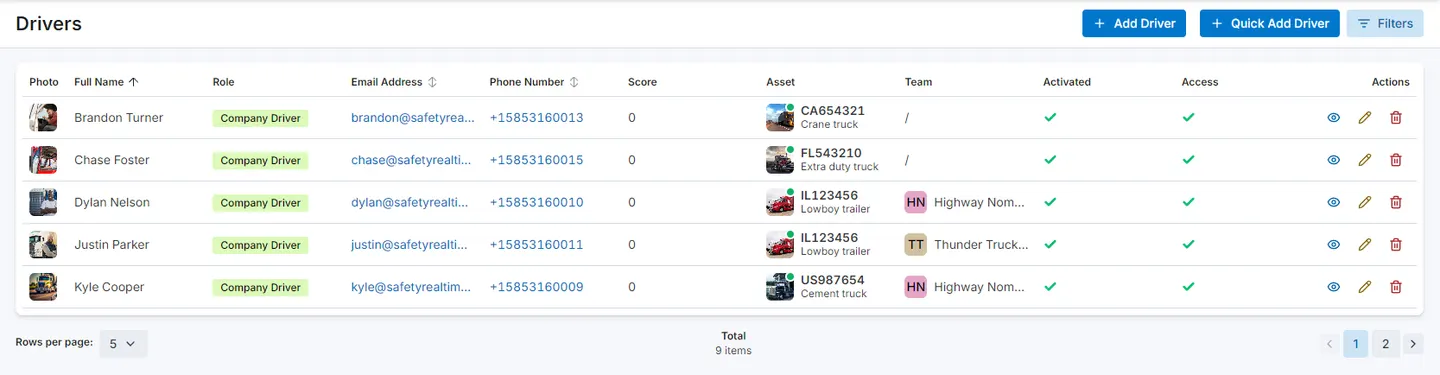
People
Managers, drivers, teams and leaves, with a role and access for each person.
07
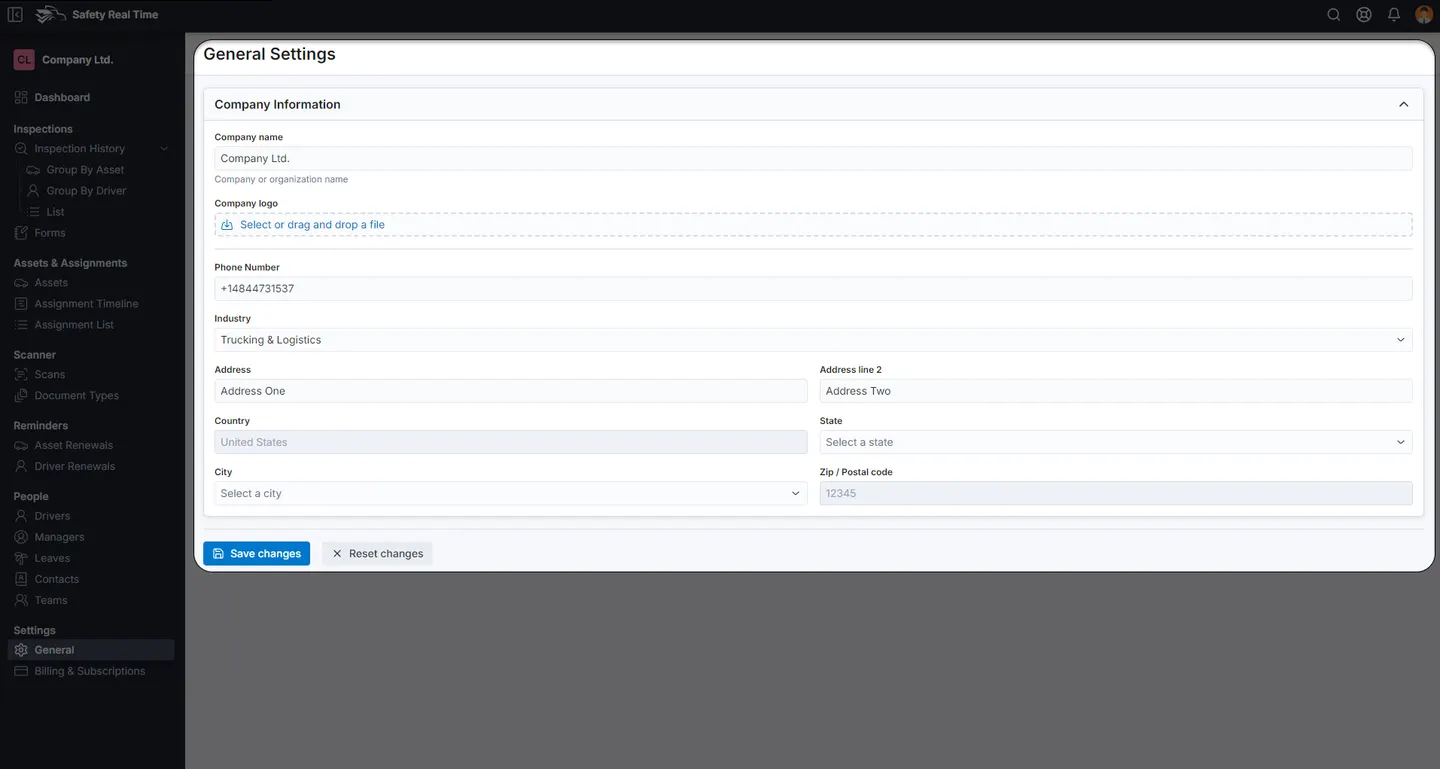
Settings & Billing
Company details, subscriptions and invoices.


The base for the rest
Automation and AI start from these records
Inspections, defects, load history and due dates give the automations, voice agents and AI models connected data to work from.
See it for yourself
Request a demo and we will walk through an inspection on your own forms and fleet.